At a glance
Verifying your Google Business Profile is how you confirm to Google that your business really operates and that you have the right to manage it. Only after verification can you manage details such as your business name, hours and photos yourself.
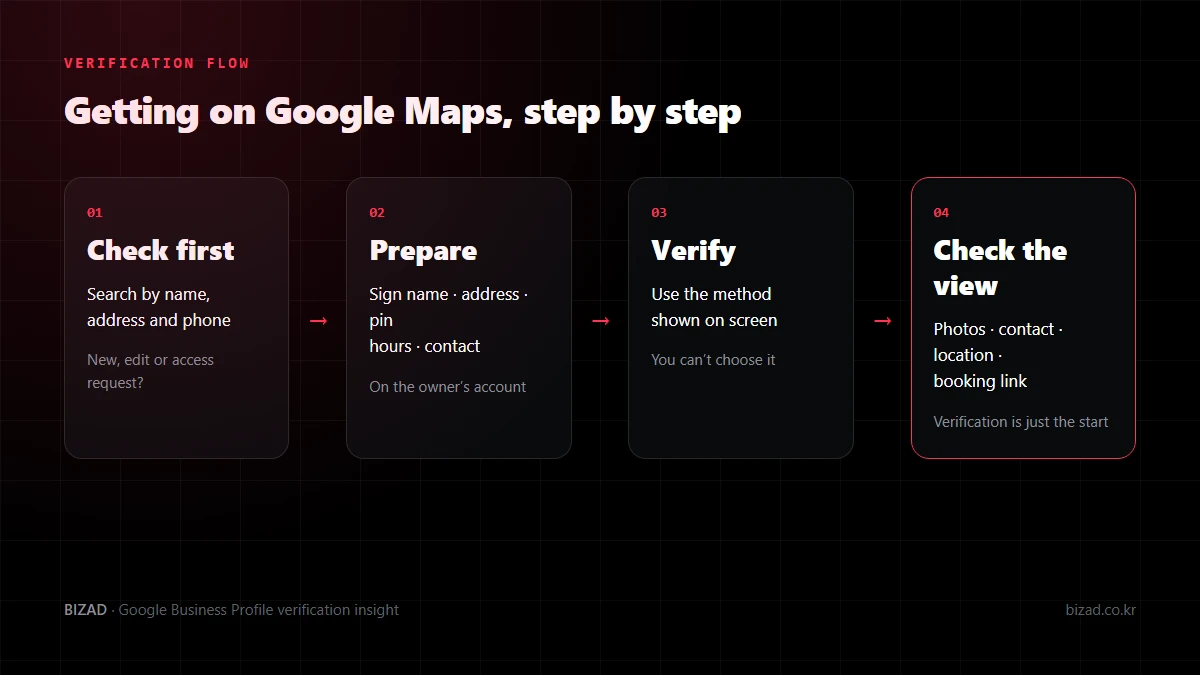
Google decides which verification methods each business sees, so you cannot pick one. Before creating a new profile, start by checking whether your business is already listed and who is managing it.
What is Google Business Profile verification?
It is the process of confirming to Google that your business exists and that you have the right to manage it. Google says you need to verify your business to edit details such as its name or hours and to interact with customers.
Once verified, you can manage the information shown for your business on Google Search and Maps. Typical items include:
- Business name, address, phone number and hours
- Categories, services and description
- Photos, website and booking links
- Review replies and updates (posts)
Verification is only the step that lets you start managing your profile; it does not guarantee any ranking or customer traffic. It needs to be followed by filling in accurate details and checking them regularly.
What should I prepare before adding my business to Google Maps?
First, check whether your business is already listed. Even if you never added it yourself, a customer or a previous staff member may have put it on the map.
Search by business name, address, phone number and any former name, and work out whether you need a new listing, an edit, or access to an existing profile. Then prepare the following.
- 01A managing account — a Google account the owner can always access. If only a staff member’s personal account manages it, things get difficult when that person leaves.
- 02Name and main business type — the real name on your sign and your core line of business.
- 03Address and map location — street address, building name, floor and unit, and a map pin that points to the real location.
- 04Hours and contact details — hours for each day, regular closed days and a phone number that actually connects.
- 05Website and booking page — check in advance that they open properly on a phone.
If you don’t serve customers at your premises and visit them instead, showing your address the way a shopfront does may not be appropriate. Set up the profile to match how you actually operate.
Can I choose my verification method?
No. Google automatically decides which verification methods to show each business, and you cannot change them. Google also says that in some cases you may need to verify with more than one method.
So the fact that another business verified by phone doesn’t mean the same option will appear for you. Here are the methods you may see and what to prepare for each.
| Method | What to prepare |
|---|---|
| Video recording | A filming route that shows your location, real operations and management access |
| Phone or text | A number that can receive the code directly (automated phone systems usually can’t) |
| Access, right now, to the email address shown on screen | |
| Live video call | A call during business hours, a stable connection and a charged battery |
| Not changing your name, address or category while you wait for the code |
We don’t recommend creating a new profile or editing your details repeatedly because the method you wanted didn’t appear. Preparing for the method shown is the safe approach.
How do I prepare for video verification?
Plan a filming route in advance so that your location, real operations and management access flow together in one continuous video. If the video is too short or shows too little, you may be asked to verify again.
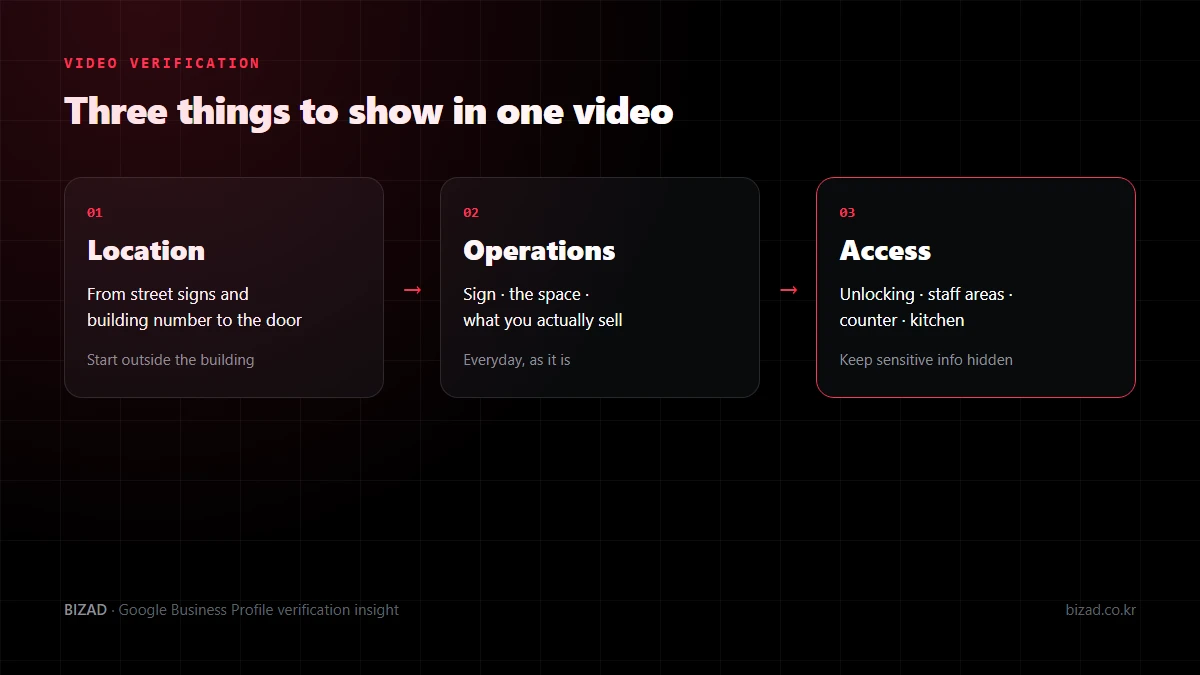
- Location — start from clues such as street signs, the building number or nearby buildings, then walk to the entrance. If you are inside a larger building, show the route from outside to your unit.
- Operations — show your permanent sign or wall signage, the space and the products or services you actually sell. Everyday operations work better than a scene set up just for filming.
- Management access — show something only a manager can reach, such as unlocking the door, a staff-only area, the counter or the kitchen.
Make sure customer lists, payment screens, bank or ID numbers and other people’s faces stay out of the video. A pre-edited promotional video may not meet the requirements for verification recordings, so film following the steps your profile shows.
When BizAd registers many shops together, we plan the filming route floor by floor in advance and then verify each shop by video on site.
I submitted verification. Why isn’t it complete yet?
Because Google reviews the information you submitted. Google says the review after you complete the verification steps can take a few days, and in some cases verification is instant.
Changing your name, address or category while you wait can affect the verification in progress. With mail verification in particular, requesting a new code makes the earlier one unusable, so it is best to wait for it to arrive. It is also safest not to share your verification code with anyone.
If the Get verified button appears again, or you are told there is a problem with your video, check these first.
- Does the business name match your sign?
- Does the address match where you actually operate?
- Does the video clearly show the exterior sign and real operations?
- Can you actually receive a code by phone or email?
- Is there a duplicate profile for the same business?
- Have you changed the name, address or category often recently?
Can I list my business on Google Maps before it opens?
Yes. If you meet the requirements, you can create a Business Profile before opening and set a future opening date. A profile with an opening date that has been verified can appear on Google before you open.
What matters is setting the opening date to the day you can actually serve customers. The day the fit-out ends, staff training and the first real trading day may all be different.
- If you post photos of the fit-out, make clear it is still in preparation so it doesn’t look like the finished shop.
- Don’t present menus or prices that aren’t final as if they were confirmed.
- If you take bookings in advance, separate the date bookings open from the first date customers can actually visit.
- If a profile from a previous business at the same address remains, don’t treat it as the same business as your new shop.
After you open, check the customer view again to make sure no “coming soon” notices or construction photos are left behind.
How do I take over a profile that another account manages?
Go through the ownership request process. Creating a new listing for the same business because you can’t get into the dashboard splits the information in two and makes things more complicated.
- 01Look for the Google account your company used and any records from the previous person in charge. Sometimes the profile is only hidden because you are signed in to a different account.
- 02Pick the exact profile using the address and map link as well as the name, so you don’t request access to another branch with the same name.
- 03Make the request from the account that will manage the business from now on, and describe your relationship to the business truthfully.
- 04Follow the result through the confirmation email and the notices on the profile. No reply does not mean ownership transfers to you automatically.
Once you have access, check which role you were given, then review the name, address, hours and contact details in order. Keeping a note of the request date and the profile involved saves the next person from running into the same problem.
How should I hand management over to staff or an agency?
Rather than sharing a password, invite each person’s own Google account and give them a role that fits their work. When several people share one password, it becomes hard to tell who can access what once staff change.
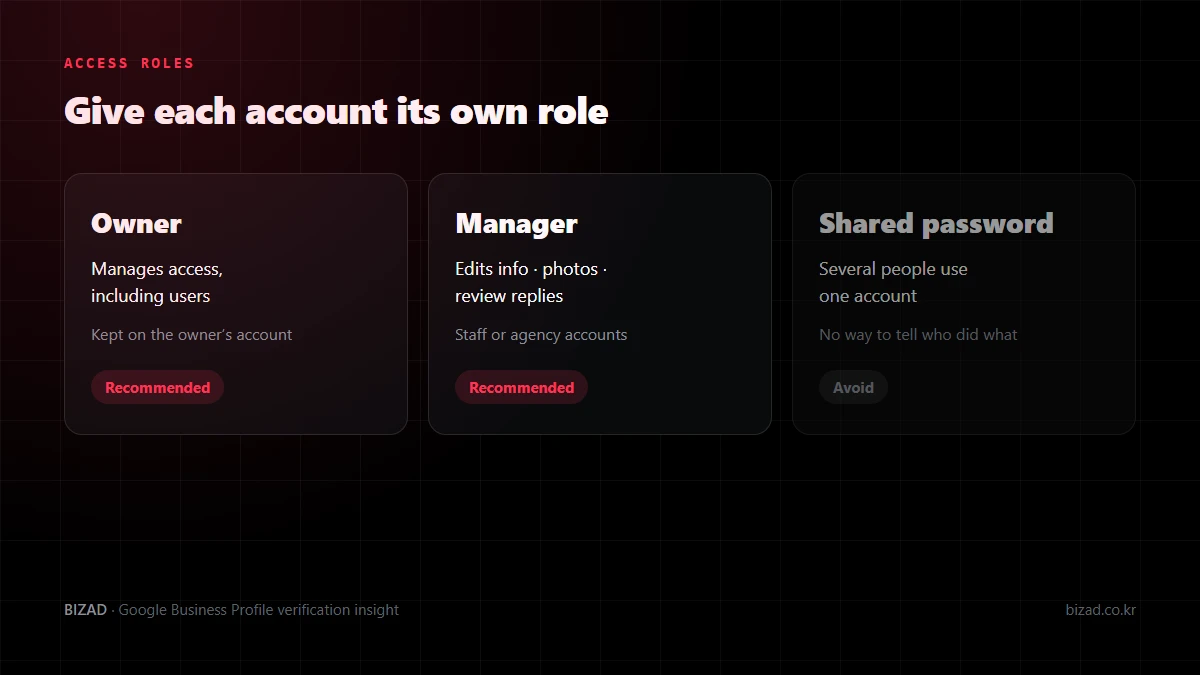
Owners can manage access, including adding and removing users, while managers handle day-to-day work such as editing information and replying to reviews. Even if you use an agency, it is safest to keep ownership on the business owner’s account and have the agency work as a manager.
- Before sending an invitation, double-check the email spelling, the business selected and the role.
- Sending an invitation is not the same as it being accepted. After acceptance, confirm the person can actually see the business.
- Newly added users may have some features restricted for a while, so allow extra time for handovers.
- Remove access for accounts that no longer need it only after confirming the new person can do the work.
What should I do if my business appears twice on Google Maps?
First work out which business each profile actually refers to. Requesting a removal or creating a new profile just because the names look similar can make the problem worse.
- Get the map link for each of the two profiles.
- Compare the address, map pin, phone number, linked website and the sign in the photos with your real business.
- Two profiles at the same address may be different businesses in the same building.
- Confirm which profile to clean up before acting, so a business that is still open isn’t marked as closed.
Google’s guidance is that, in principle, one business should have one profile. If you have several branches, each branch gets its own profile, and it is better to fill in each branch’s real address, hours, photos and booking link than to copy the main branch’s details.
After requesting a fix, search for your business name again and check that the map links on your website and booking pages point to the correct profile.
If my profile is suspended, should I create a new one?
No. Creating a new profile while suspended can look like a duplicate and make things more complicated. Google advises not to create a new profile for the same business while an appeal is being reviewed.
Suspensions usually happen when keywords have been added to the business name, the address or service area doesn’t match reality, or there are duplicate profiles or account issues. We recommend working through it in this order.
- 01Review the name, address, phone number, categories, service area, description, duplicate profiles and ownership status.
- 02Correct anything that doesn’t follow the guidelines so it matches the real business.
- 03Request a review through the official appeal process and submit supporting documents.
Supporting documents can include your business registration certificate, business licences or permits, a utility bill showing the business address, and photos of your sign and premises. The name and address on the documents should match the profile, and it is better to submit accurate documents once than to send the same thing repeatedly.
Google Business Profile verification checklist
Before you start listing and verifying, check the items below.
- I searched by name, address and phone number for an existing listing.
- I have a managing account the owner can always access.
- My business name matches my real sign.
- My address, floor and unit, and map pin match the real location.
- I checked which verification methods my profile shows.
- For video verification, I planned a route that shows location, operations and management access.
- I didn’t change the name, address or category while waiting for verification.
- Staff and agencies have their own accounts and roles instead of a shared password.
- Ownership sits with the business owner’s account.
- There are no duplicate profiles, and each branch’s details are kept separately.
In closing
Verifying your Google Business Profile is the first step to managing your presence on Google Maps. Check whether your business is already listed, who manages it and which verification methods appear before creating anything new, and you won’t have to do the same work twice.
After verification, keep reviewing your managing accounts, access roles and any duplicate profiles. A stable profile is what lets you keep managing your photos, reviews and business details.
We’ll start by checking your Google Maps listing, verification status and access for you.
Free audit